Korg EXB-RADIAS for M3 Owner's manual, Page 22

Go to Korg EXB-RADIAS for M3 Owner's manual, Page 1

1

Go to Korg EXB-RADIAS for M3 Owner's manual, Page 2

2

Go to Korg EXB-RADIAS for M3 Owner's manual, Page 3

3

Go to Korg EXB-RADIAS for M3 Owner's manual, Page 4

4

Go to Korg EXB-RADIAS for M3 Owner's manual, Page 5

5

Go to Korg EXB-RADIAS for M3 Owner's manual, Page 6

6

Go to Korg EXB-RADIAS for M3 Owner's manual, Page 7

7

Go to Korg EXB-RADIAS for M3 Owner's manual, Page 8

8

Go to Korg EXB-RADIAS for M3 Owner's manual, Page 9

9

Go to Korg EXB-RADIAS for M3 Owner's manual, Page 10

10

Go to Korg EXB-RADIAS for M3 Owner's manual, Page 11

11

Go to Korg EXB-RADIAS for M3 Owner's manual, Page 12

12

Go to Korg EXB-RADIAS for M3 Owner's manual, Page 13

13

Go to Korg EXB-RADIAS for M3 Owner's manual, Page 14

14

Go to Korg EXB-RADIAS for M3 Owner's manual, Page 15

15

Go to Korg EXB-RADIAS for M3 Owner's manual, Page 16

16

Go to Korg EXB-RADIAS for M3 Owner's manual, Page 17

17

Go to Korg EXB-RADIAS for M3 Owner's manual, Page 18

18

Go to Korg EXB-RADIAS for M3 Owner's manual, Page 19

19

Go to Korg EXB-RADIAS for M3 Owner's manual, Page 20

20

Go to Korg EXB-RADIAS for M3 Owner's manual, Page 21

21

Go to Korg EXB-RADIAS for M3 Owner's manual, Page 22

22

Go to Korg EXB-RADIAS for M3 Owner's manual, Page 23

23

Go to Korg EXB-RADIAS for M3 Owner's manual, Page 24

24

Go to Korg EXB-RADIAS for M3 Owner's manual, Page 25

25

Go to Korg EXB-RADIAS for M3 Owner's manual, Page 26

26

Go to Korg EXB-RADIAS for M3 Owner's manual, Page 27

27

Go to Korg EXB-RADIAS for M3 Owner's manual, Page 28

28

Go to Korg EXB-RADIAS for M3 Owner's manual, Page 29

29

Go to Korg EXB-RADIAS for M3 Owner's manual, Page 30

30

Go to Korg EXB-RADIAS for M3 Owner's manual, Page 31

31

Go to Korg EXB-RADIAS for M3 Owner's manual, Page 32

32

Go to Korg EXB-RADIAS for M3 Owner's manual, Page 33

33

Go to Korg EXB-RADIAS for M3 Owner's manual, Page 34

34

Go to Korg EXB-RADIAS for M3 Owner's manual, Page 35

35

Go to Korg EXB-RADIAS for M3 Owner's manual, Page 36

36

Go to Korg EXB-RADIAS for M3 Owner's manual, Page 37

37

Go to Korg EXB-RADIAS for M3 Owner's manual, Page 38

38

Go to Korg EXB-RADIAS for M3 Owner's manual, Page 39

39

Go to Korg EXB-RADIAS for M3 Owner's manual, Page 40

40

Go to Korg EXB-RADIAS for M3 Owner's manual, Page 41

41

Go to Korg EXB-RADIAS for M3 Owner's manual, Page 42

42

Go to Korg EXB-RADIAS for M3 Owner's manual, Page 43

43

Go to Korg EXB-RADIAS for M3 Owner's manual, Page 44

44

Go to Korg EXB-RADIAS for M3 Owner's manual, Page 45

45

Go to Korg EXB-RADIAS for M3 Owner's manual, Page 46

46

Go to Korg EXB-RADIAS for M3 Owner's manual, Page 47

47

Go to Korg EXB-RADIAS for M3 Owner's manual, Page 48

48

Go to Korg EXB-RADIAS for M3 Owner's manual, Page 49

49

Go to Korg EXB-RADIAS for M3 Owner's manual, Page 50

50

Go to Korg EXB-RADIAS for M3 Owner's manual, Page 51

51

Go to Korg EXB-RADIAS for M3 Owner's manual, Page 52

52

Go to Korg EXB-RADIAS for M3 Owner's manual, Page 53

53

Go to Korg EXB-RADIAS for M3 Owner's manual, Page 54

54

Go to Korg EXB-RADIAS for M3 Owner's manual, Page 55

55

Go to Korg EXB-RADIAS for M3 Owner's manual, Page 56

56

Go to Korg EXB-RADIAS for M3 Owner's manual, Page 57

57

Go to Korg EXB-RADIAS for M3 Owner's manual, Page 58

58

Go to Korg EXB-RADIAS for M3 Owner's manual, Page 59

59

Go to Korg EXB-RADIAS for M3 Owner's manual, Page 60

60

Go to Korg EXB-RADIAS for M3 Owner's manual, Page 61

61

Go to Korg EXB-RADIAS for M3 Owner's manual, Page 62

62

Go to Korg EXB-RADIAS for M3 Owner's manual, Page 63

63

Go to Korg EXB-RADIAS for M3 Owner's manual, Page 64

64

Go to Korg EXB-RADIAS for M3 Owner's manual, Page 65

65

Go to Korg EXB-RADIAS for M3 Owner's manual, Page 66

66

Go to Korg EXB-RADIAS for M3 Owner's manual, Page 67

67

Go to Korg EXB-RADIAS for M3 Owner's manual, Page 68

68

Go to Korg EXB-RADIAS for M3 Owner's manual, Page 69

69

Go to Korg EXB-RADIAS for M3 Owner's manual, Page 70

70

Go to Korg EXB-RADIAS for M3 Owner's manual, Page 71

71

Go to Korg EXB-RADIAS for M3 Owner's manual, Page 72

72

Go to Korg EXB-RADIAS for M3 Owner's manual, Page 73

73

Go to Korg EXB-RADIAS for M3 Owner's manual, Page 74

74

Go to Korg EXB-RADIAS for M3 Owner's manual, Page 75

75

Go to Korg EXB-RADIAS for M3 Owner's manual, Page 76

76

Go to Korg EXB-RADIAS for M3 Owner's manual, Page 77

77

Go to Korg EXB-RADIAS for M3 Owner's manual, Page 78

78

Illustration: Korg EXB-RADIAS for M3 Owner's manual, Page 22
Operation
14
Formant Motion function
The formant motion function lets you use data such as a
previously-recorded voice as the input to the modulator,
causing the vocoder to produce sound. This lets you play
the vocoder without having to vocalize into the mic.
The EXB-RADIAS contains preloaded data for sixteen
formant motions.
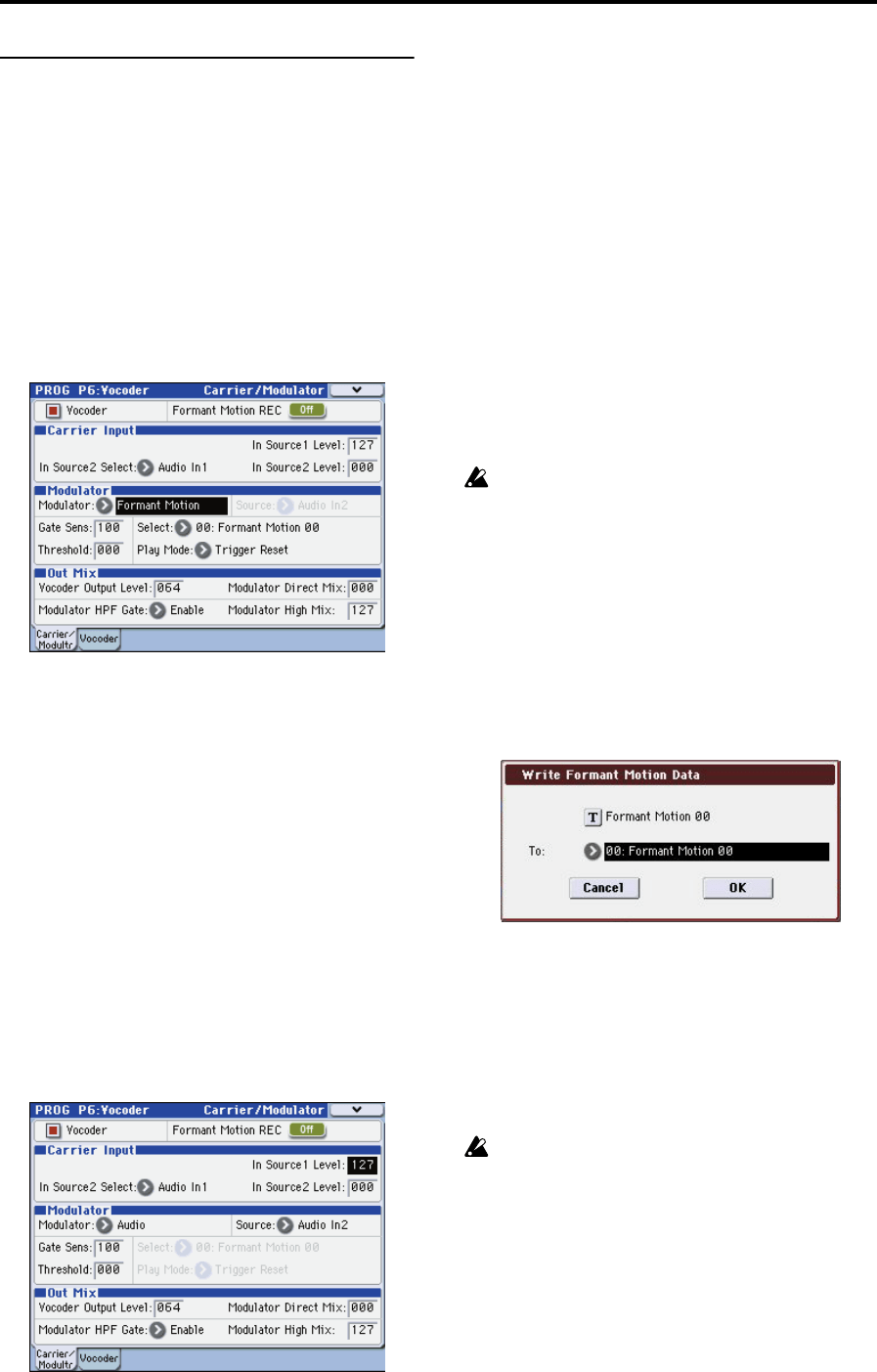
Assigning a formant motion to the modulator
Here’s how to play the vocoder by using the factory-set
formant motion data.
1. In Program mode, select a vocoder program.
“Vocoder program” on page 3
2. Access the PROG P1: Carrier/Modulator page.
3. Set “Modulator” to Formant Motion.
4. Use “Select” to select the desired formant motion data.
You can select from sixteen choices: Formant Motion 00–15.
5. Use “Play Mode” to specify how the formant motion
data will play back.
If you select Trigger Reset, the formant motion data will
reset to its beginning each time you play a note.
6. Play the keyboard.
The vocoder will sound using the formant motion data.
Recording your own formant motion data
Here’s how you can connect a mic to the rear panel AUDIO
INPUT 2 jack and record your own formant motion data.
1. Connect a mic to the rear panel AUDIO INPUT 2 jack,
and use “Program Select” to select a vocoder program.
“Vocoder program” on page 3
2. Adjust the mic input level.
“Vocoder program” on page 3
3. Access the PROG P6-1: Carrier/Modulator page.
4. Turn “Formant Motion REC” On, and speak into the
mic.
Recording will begin when you turn Formant Motion REC
On.
5. Turn “Formant Motion REC” Off to stop recording.
Recording will stop automatically if the memory
capacity assigned to the data becomes full
(approximately 7.5 seconds).
6. Set “Modulator” to Formant Motion.
7. Play the keyboard.
The vocoder will sound using the formant motion data you
recorded.
If you want to keep the data you recorded, you’ll need to
write the formant motion data. For more information, please
see “Write Formant Motion Data” on page 46.
Writing formant motion data
Here’s how the formant motion data you recorded can be
written into internal memory. The internal memory can hold
sixteen sets of formant motion data.
We recommend that you write the formant motion
data immediately after you’ve recorded it. The
data will be lost if you perform any of the
following operations before writing.
Selecting other formant data
Selecting another program
•Turning off the power
Receiving a MIDI dump of the corresponding
data from an external connected device
1. In the PROG P6: Vocoder page, choose the menu
command “Write Formant Motion Data” to access the
dialog box.
2. The upper line shows the name of the formant motion
data.
If you want to edit the name of the formant motion data,
press the text edit button to access the text edit dialog box,
and enter the desired name.
3. Use the “To” field to select the writing destination.
4. Press the OK button to write the formant motion data,
or press the Cancel button if you decide not to write the
data.
Never turn off the power while the data is being
written. Doing so may damage the data.
Note: The data that is written will be held in internal
memory even when the power is off. You can also use the
Media mode menu command “Save PCG” to save it on an
external memory device. The data is saved as part of the
PCG file.