Korg EXB-RADIAS for M3 Owner's manual, Page 19

Go to Korg EXB-RADIAS for M3 Owner's manual, Page 1

1

Go to Korg EXB-RADIAS for M3 Owner's manual, Page 2

2

Go to Korg EXB-RADIAS for M3 Owner's manual, Page 3

3

Go to Korg EXB-RADIAS for M3 Owner's manual, Page 4

4

Go to Korg EXB-RADIAS for M3 Owner's manual, Page 5

5

Go to Korg EXB-RADIAS for M3 Owner's manual, Page 6

6

Go to Korg EXB-RADIAS for M3 Owner's manual, Page 7

7

Go to Korg EXB-RADIAS for M3 Owner's manual, Page 8

8

Go to Korg EXB-RADIAS for M3 Owner's manual, Page 9

9

Go to Korg EXB-RADIAS for M3 Owner's manual, Page 10

10

Go to Korg EXB-RADIAS for M3 Owner's manual, Page 11

11

Go to Korg EXB-RADIAS for M3 Owner's manual, Page 12

12

Go to Korg EXB-RADIAS for M3 Owner's manual, Page 13

13

Go to Korg EXB-RADIAS for M3 Owner's manual, Page 14

14

Go to Korg EXB-RADIAS for M3 Owner's manual, Page 15

15

Go to Korg EXB-RADIAS for M3 Owner's manual, Page 16

16

Go to Korg EXB-RADIAS for M3 Owner's manual, Page 17

17

Go to Korg EXB-RADIAS for M3 Owner's manual, Page 18

18

Go to Korg EXB-RADIAS for M3 Owner's manual, Page 19

19

Go to Korg EXB-RADIAS for M3 Owner's manual, Page 20

20

Go to Korg EXB-RADIAS for M3 Owner's manual, Page 21

21

Go to Korg EXB-RADIAS for M3 Owner's manual, Page 22

22

Go to Korg EXB-RADIAS for M3 Owner's manual, Page 23

23

Go to Korg EXB-RADIAS for M3 Owner's manual, Page 24

24

Go to Korg EXB-RADIAS for M3 Owner's manual, Page 25

25

Go to Korg EXB-RADIAS for M3 Owner's manual, Page 26

26

Go to Korg EXB-RADIAS for M3 Owner's manual, Page 27

27

Go to Korg EXB-RADIAS for M3 Owner's manual, Page 28

28

Go to Korg EXB-RADIAS for M3 Owner's manual, Page 29

29

Go to Korg EXB-RADIAS for M3 Owner's manual, Page 30

30

Go to Korg EXB-RADIAS for M3 Owner's manual, Page 31

31

Go to Korg EXB-RADIAS for M3 Owner's manual, Page 32

32

Go to Korg EXB-RADIAS for M3 Owner's manual, Page 33

33

Go to Korg EXB-RADIAS for M3 Owner's manual, Page 34

34

Go to Korg EXB-RADIAS for M3 Owner's manual, Page 35

35

Go to Korg EXB-RADIAS for M3 Owner's manual, Page 36

36

Go to Korg EXB-RADIAS for M3 Owner's manual, Page 37

37

Go to Korg EXB-RADIAS for M3 Owner's manual, Page 38

38

Go to Korg EXB-RADIAS for M3 Owner's manual, Page 39

39

Go to Korg EXB-RADIAS for M3 Owner's manual, Page 40

40

Go to Korg EXB-RADIAS for M3 Owner's manual, Page 41

41

Go to Korg EXB-RADIAS for M3 Owner's manual, Page 42

42

Go to Korg EXB-RADIAS for M3 Owner's manual, Page 43

43

Go to Korg EXB-RADIAS for M3 Owner's manual, Page 44

44

Go to Korg EXB-RADIAS for M3 Owner's manual, Page 45

45

Go to Korg EXB-RADIAS for M3 Owner's manual, Page 46

46

Go to Korg EXB-RADIAS for M3 Owner's manual, Page 47

47

Go to Korg EXB-RADIAS for M3 Owner's manual, Page 48

48

Go to Korg EXB-RADIAS for M3 Owner's manual, Page 49

49

Go to Korg EXB-RADIAS for M3 Owner's manual, Page 50

50

Go to Korg EXB-RADIAS for M3 Owner's manual, Page 51

51

Go to Korg EXB-RADIAS for M3 Owner's manual, Page 52

52

Go to Korg EXB-RADIAS for M3 Owner's manual, Page 53

53

Go to Korg EXB-RADIAS for M3 Owner's manual, Page 54

54

Go to Korg EXB-RADIAS for M3 Owner's manual, Page 55

55

Go to Korg EXB-RADIAS for M3 Owner's manual, Page 56

56

Go to Korg EXB-RADIAS for M3 Owner's manual, Page 57

57

Go to Korg EXB-RADIAS for M3 Owner's manual, Page 58

58

Go to Korg EXB-RADIAS for M3 Owner's manual, Page 59

59

Go to Korg EXB-RADIAS for M3 Owner's manual, Page 60

60

Go to Korg EXB-RADIAS for M3 Owner's manual, Page 61

61

Go to Korg EXB-RADIAS for M3 Owner's manual, Page 62

62

Go to Korg EXB-RADIAS for M3 Owner's manual, Page 63

63

Go to Korg EXB-RADIAS for M3 Owner's manual, Page 64

64

Go to Korg EXB-RADIAS for M3 Owner's manual, Page 65

65

Go to Korg EXB-RADIAS for M3 Owner's manual, Page 66

66

Go to Korg EXB-RADIAS for M3 Owner's manual, Page 67

67

Go to Korg EXB-RADIAS for M3 Owner's manual, Page 68

68

Go to Korg EXB-RADIAS for M3 Owner's manual, Page 69

69

Go to Korg EXB-RADIAS for M3 Owner's manual, Page 70

70

Go to Korg EXB-RADIAS for M3 Owner's manual, Page 71

71

Go to Korg EXB-RADIAS for M3 Owner's manual, Page 72

72

Go to Korg EXB-RADIAS for M3 Owner's manual, Page 73

73

Go to Korg EXB-RADIAS for M3 Owner's manual, Page 74

74

Go to Korg EXB-RADIAS for M3 Owner's manual, Page 75

75

Go to Korg EXB-RADIAS for M3 Owner's manual, Page 76

76

Go to Korg EXB-RADIAS for M3 Owner's manual, Page 77

77

Go to Korg EXB-RADIAS for M3 Owner's manual, Page 78

78

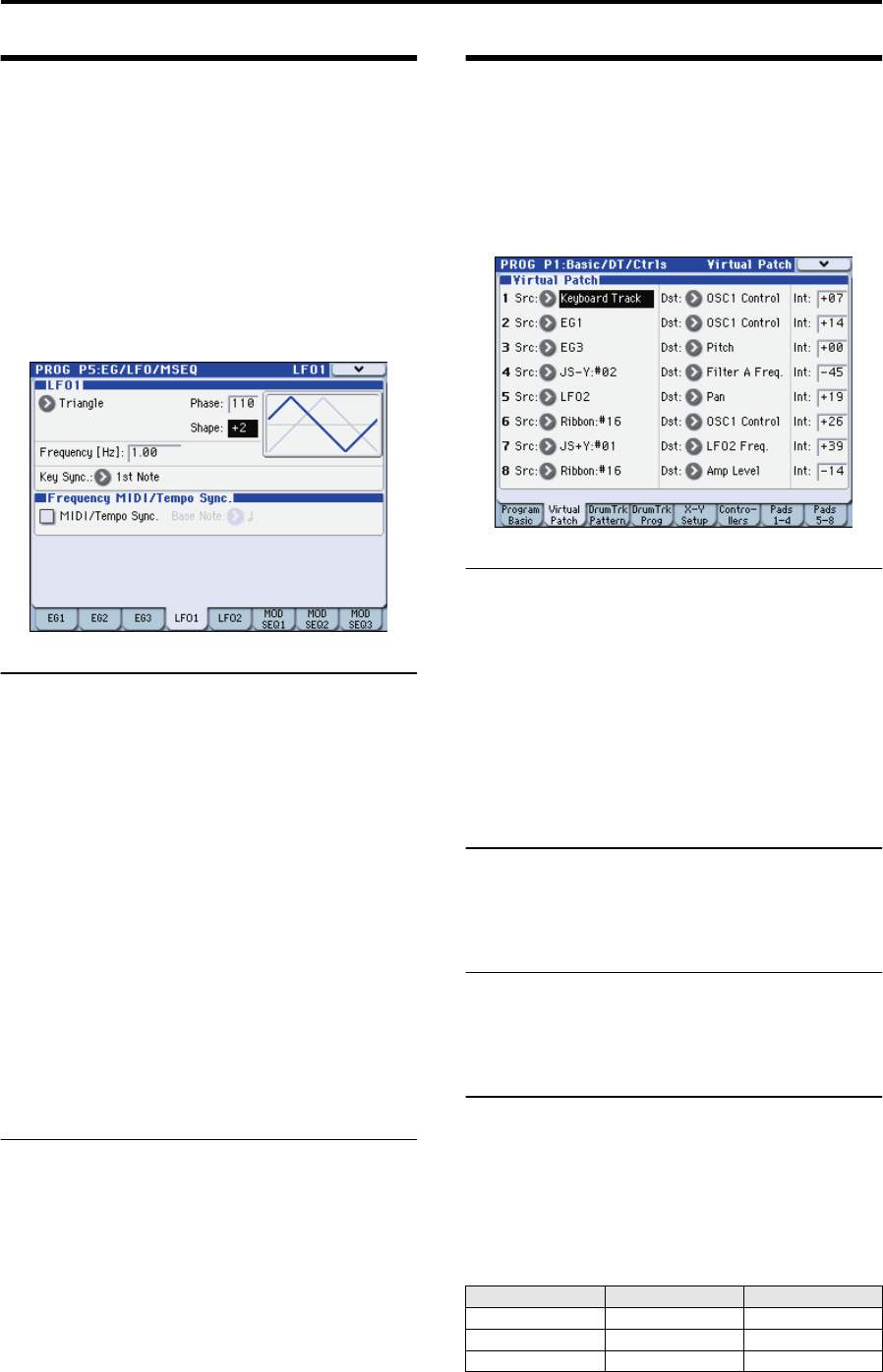
Illustration: Korg EXB-RADIAS for M3 Owner's manual, Page 19
Editing a program LFO
11
LFO
These are the parameters for the LFOs (Low Frequency
Oscillators). An LFO can apply cyclic change to the sound.
LFO1 is internally connected as the modulation source for
oscillator 1 waveform.
LFO2 is internally connected as the modulation source for
the oscillator pitch modulation controlled by the joy-stick.
You can also use a virtual patch to assign an LFO as a
modulation source for other parameters. For more
information, please see “Virtual Patch” on page 11.
Waveform, speed (frequency), and tempo synchronization
can be edited in the PROG P5-4: LFO1 or P5-5: LFO2 pages.
LFO waveform
1. Use “Waveform” to select the basic waveform of the
LFO.
The change produced by the LFO depends on the
waveform. Select various waveforms and notice the
difference in how they affect the sound.
2. Use “Phase” to specify the starting position of the
waveform.
Notice that this setting moves the waveform to left or right.
You can create interesting effects by offsetting the phase of
one LFO relative to the other LFO.
This parameter is available when Key Sync is 1st Note or
Each Note.
3. Use “Shape” to modify the basic waveform of the LFO.
The change produced by this parameter will depend on the
Waveform you’ve selected.
4. Use “Frequency [Hz]” to specify the frequency of the
formant motion.
This parameter is valid if MIDI/Tempo Sync. is Off
(unchecked).
MIDI/Tempo Sync
1. Use “MIDI/Tempo Sync.” to specify how the LFO will
synchronize.
If this is On (checked), the LFO will synchronize to the
system tempo specified by the TEMPO knob or TAP
TEMPO switch, or to the MIDI Clock from an external
device.
2. Use “Base Note” to specify the LFO cycle.
This specifies the ratio of the LFO cycle relative to the
system tempo or external MIDI clock. This parameter is
valid if MIDI/Tempo Sync. is On (checked).
Virtual Patch
These are the parameters for the Virtual Patch function.
Virtual Patch is a function that lets you assign modulation
sources such as EG or LFO to a variety of parameters. For
each timbre you can create up to eight of these
combinations.
Make these settings in the PROG P1-2: Virtual Patch page.
Virtual Patch settings
1. Use “Src (Source)” to select a modulation source.
You can select EG, LFO, or various controllers as a
modulation source.
For more information, please see “Src (Source)” on page 28.
2. Use “Dst (Destination)” to select the parameter that
will be modulated.
For more information, please see “Dst (Destination)” on
page 28.
3. Use “Int (Intensity)” to specify the depth of
modulation.
Controlling volume
If you set Src (Source) to LFO2, Dst (Destination) to Amp
Level, and adjust Int (Intensity) as desired, LFO2 will
produce a tremolo effect.
Controlling pan
If you set Src (Source) to LFO2, Dst (Destination) to Pan,
and adjust Int (Intensity) as desired, LFO2 will move the
sound between left and right to produce an auto pan effect.
Controlling filter
If you set Src (Source) to LFO2, Dst (Destination) to Filter
A Frequency, and adjust Int (Intensity) as desired, LFO2
will vary the filter cutoff frequency to produce an auto wah
effect.
You can use an LFO to modulate a wide range of parameters
in addition to those listed above.
Source and Destination settings, and their effect
Src (Source) Dst (Destination) Modulation effect
LFO2 Amp Level Tremolo effect
LFG2 Pan Auto pan effect
LFO2 Filter A Frequency Auto wah effect