Korg EXB-RADIAS for M3 Owner's manual, Page 20

Go to Korg EXB-RADIAS for M3 Owner's manual, Page 1

1

Go to Korg EXB-RADIAS for M3 Owner's manual, Page 2

2

Go to Korg EXB-RADIAS for M3 Owner's manual, Page 3

3

Go to Korg EXB-RADIAS for M3 Owner's manual, Page 4

4

Go to Korg EXB-RADIAS for M3 Owner's manual, Page 5

5

Go to Korg EXB-RADIAS for M3 Owner's manual, Page 6

6

Go to Korg EXB-RADIAS for M3 Owner's manual, Page 7

7

Go to Korg EXB-RADIAS for M3 Owner's manual, Page 8

8

Go to Korg EXB-RADIAS for M3 Owner's manual, Page 9

9

Go to Korg EXB-RADIAS for M3 Owner's manual, Page 10

10

Go to Korg EXB-RADIAS for M3 Owner's manual, Page 11

11

Go to Korg EXB-RADIAS for M3 Owner's manual, Page 12

12

Go to Korg EXB-RADIAS for M3 Owner's manual, Page 13

13

Go to Korg EXB-RADIAS for M3 Owner's manual, Page 14

14

Go to Korg EXB-RADIAS for M3 Owner's manual, Page 15

15

Go to Korg EXB-RADIAS for M3 Owner's manual, Page 16

16

Go to Korg EXB-RADIAS for M3 Owner's manual, Page 17

17

Go to Korg EXB-RADIAS for M3 Owner's manual, Page 18

18

Go to Korg EXB-RADIAS for M3 Owner's manual, Page 19

19

Go to Korg EXB-RADIAS for M3 Owner's manual, Page 20

20

Go to Korg EXB-RADIAS for M3 Owner's manual, Page 21

21

Go to Korg EXB-RADIAS for M3 Owner's manual, Page 22

22

Go to Korg EXB-RADIAS for M3 Owner's manual, Page 23

23

Go to Korg EXB-RADIAS for M3 Owner's manual, Page 24

24

Go to Korg EXB-RADIAS for M3 Owner's manual, Page 25

25

Go to Korg EXB-RADIAS for M3 Owner's manual, Page 26

26

Go to Korg EXB-RADIAS for M3 Owner's manual, Page 27

27

Go to Korg EXB-RADIAS for M3 Owner's manual, Page 28

28

Go to Korg EXB-RADIAS for M3 Owner's manual, Page 29

29

Go to Korg EXB-RADIAS for M3 Owner's manual, Page 30

30

Go to Korg EXB-RADIAS for M3 Owner's manual, Page 31

31

Go to Korg EXB-RADIAS for M3 Owner's manual, Page 32

32

Go to Korg EXB-RADIAS for M3 Owner's manual, Page 33

33

Go to Korg EXB-RADIAS for M3 Owner's manual, Page 34

34

Go to Korg EXB-RADIAS for M3 Owner's manual, Page 35

35

Go to Korg EXB-RADIAS for M3 Owner's manual, Page 36

36

Go to Korg EXB-RADIAS for M3 Owner's manual, Page 37

37

Go to Korg EXB-RADIAS for M3 Owner's manual, Page 38

38

Go to Korg EXB-RADIAS for M3 Owner's manual, Page 39

39

Go to Korg EXB-RADIAS for M3 Owner's manual, Page 40

40

Go to Korg EXB-RADIAS for M3 Owner's manual, Page 41

41

Go to Korg EXB-RADIAS for M3 Owner's manual, Page 42

42

Go to Korg EXB-RADIAS for M3 Owner's manual, Page 43

43

Go to Korg EXB-RADIAS for M3 Owner's manual, Page 44

44

Go to Korg EXB-RADIAS for M3 Owner's manual, Page 45

45

Go to Korg EXB-RADIAS for M3 Owner's manual, Page 46

46

Go to Korg EXB-RADIAS for M3 Owner's manual, Page 47

47

Go to Korg EXB-RADIAS for M3 Owner's manual, Page 48

48

Go to Korg EXB-RADIAS for M3 Owner's manual, Page 49

49

Go to Korg EXB-RADIAS for M3 Owner's manual, Page 50

50

Go to Korg EXB-RADIAS for M3 Owner's manual, Page 51

51

Go to Korg EXB-RADIAS for M3 Owner's manual, Page 52

52

Go to Korg EXB-RADIAS for M3 Owner's manual, Page 53

53

Go to Korg EXB-RADIAS for M3 Owner's manual, Page 54

54

Go to Korg EXB-RADIAS for M3 Owner's manual, Page 55

55

Go to Korg EXB-RADIAS for M3 Owner's manual, Page 56

56

Go to Korg EXB-RADIAS for M3 Owner's manual, Page 57

57

Go to Korg EXB-RADIAS for M3 Owner's manual, Page 58

58

Go to Korg EXB-RADIAS for M3 Owner's manual, Page 59

59

Go to Korg EXB-RADIAS for M3 Owner's manual, Page 60

60

Go to Korg EXB-RADIAS for M3 Owner's manual, Page 61

61

Go to Korg EXB-RADIAS for M3 Owner's manual, Page 62

62

Go to Korg EXB-RADIAS for M3 Owner's manual, Page 63

63

Go to Korg EXB-RADIAS for M3 Owner's manual, Page 64

64

Go to Korg EXB-RADIAS for M3 Owner's manual, Page 65

65

Go to Korg EXB-RADIAS for M3 Owner's manual, Page 66

66

Go to Korg EXB-RADIAS for M3 Owner's manual, Page 67

67

Go to Korg EXB-RADIAS for M3 Owner's manual, Page 68

68

Go to Korg EXB-RADIAS for M3 Owner's manual, Page 69

69

Go to Korg EXB-RADIAS for M3 Owner's manual, Page 70

70

Go to Korg EXB-RADIAS for M3 Owner's manual, Page 71

71

Go to Korg EXB-RADIAS for M3 Owner's manual, Page 72

72

Go to Korg EXB-RADIAS for M3 Owner's manual, Page 73

73

Go to Korg EXB-RADIAS for M3 Owner's manual, Page 74

74

Go to Korg EXB-RADIAS for M3 Owner's manual, Page 75

75

Go to Korg EXB-RADIAS for M3 Owner's manual, Page 76

76

Go to Korg EXB-RADIAS for M3 Owner's manual, Page 77

77

Go to Korg EXB-RADIAS for M3 Owner's manual, Page 78

78

Illustration: Korg EXB-RADIAS for M3 Owner's manual, Page 20
Operation
12
Modulation Sequencers
The Modulation Sequencers let you apply time-varying
change to sound parameters in a way similar to analog
sequencers of the past. A modulation sequencer stores a
discreet value for each of sixteen individual steps, and
consecutively applies these values to vary the sound over
time. Since three modulation sequencers are provided for
each program, you can create sounds that change in very
complex ways.
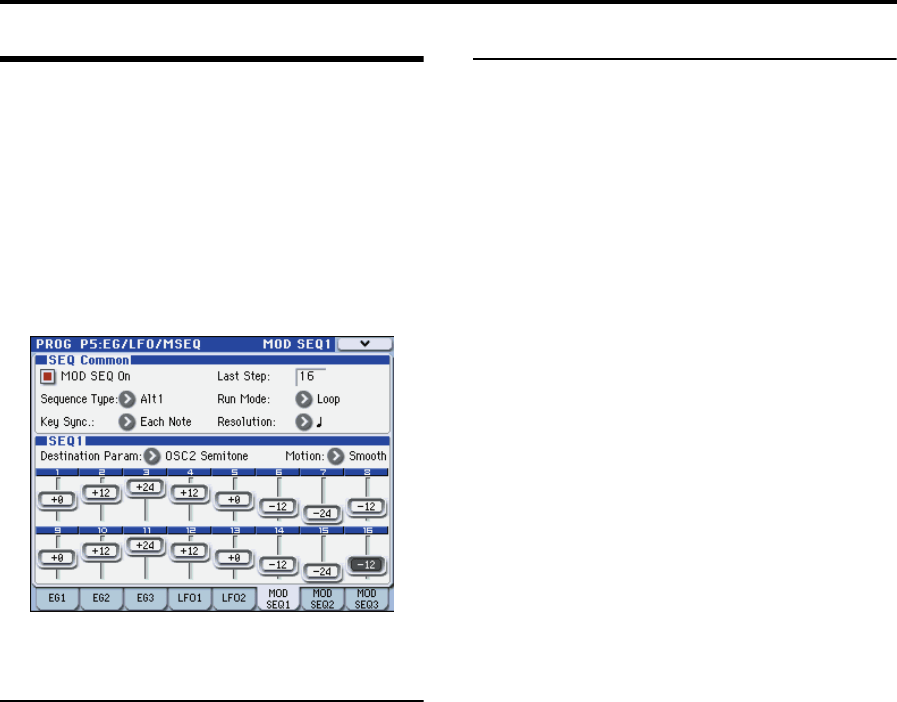
Make these settings in the PROG P5-6: MOD SEQ1, P5-7:
MOD SEQ2, and P5-8: MOD SEQ3 pages.
Here we’ll explain how to use modulation sequencer 1 to
modulate the oscillator pitch.
SEQ Common
Before we specify each step of the actual sequence data
itself, we’ll need to specify the number of steps in the
sequence, and the playback method. These parameters are
common to all three modulation sequencers.
1. Access the PROG P5-6: MOD SEQ1 page.
2. Turn on “MOD SEQ” On (checked).
If this is On (checked), the three modulation sequencers will
be on, and the values stored in each step of each modulation
sequencer will modulate the sound parameters.
3. Set “LastStep” to 16.
The sequence will begin playing when a note-on occurs, and
will proceed for sixteen steps.
4. Set “Sequence Type” to Alt1.
“Sequence Type” on page 40
5. Set “Run Mode” to Loop.
“Run Mode” on page 41
6. Set “KeySync” to 1st Note.
“Key Sync.” on page 41
7. Set “Resolution” to .
The sequencer will advance one step for each note value you
specify here, relative to the tempo. If this is set to , the
sequencer will advance one step for each quarter-note beat.
Editing the steps
1. Set “Destination Param” to Pitch.
2. Use “Motion” to specify how the values stored in each
step will change when the modulation sequencer plays.
For this example, choose Smooth.
3. While playing the keyboard so that you can hear the
sound, specify the sequence data for each step. If you
want to adjust the value in detail, use the VALUE dial
etc.
The value of each step is applied as an amount of relative
change to the parameter’s assigned value.