Korg EXB-RADIAS for M3 Owner's manual, Page 16

Go to Korg EXB-RADIAS for M3 Owner's manual, Page 1

1

Go to Korg EXB-RADIAS for M3 Owner's manual, Page 2

2

Go to Korg EXB-RADIAS for M3 Owner's manual, Page 3

3

Go to Korg EXB-RADIAS for M3 Owner's manual, Page 4

4

Go to Korg EXB-RADIAS for M3 Owner's manual, Page 5

5

Go to Korg EXB-RADIAS for M3 Owner's manual, Page 6

6

Go to Korg EXB-RADIAS for M3 Owner's manual, Page 7

7

Go to Korg EXB-RADIAS for M3 Owner's manual, Page 8

8

Go to Korg EXB-RADIAS for M3 Owner's manual, Page 9

9

Go to Korg EXB-RADIAS for M3 Owner's manual, Page 10

10

Go to Korg EXB-RADIAS for M3 Owner's manual, Page 11

11

Go to Korg EXB-RADIAS for M3 Owner's manual, Page 12

12

Go to Korg EXB-RADIAS for M3 Owner's manual, Page 13

13

Go to Korg EXB-RADIAS for M3 Owner's manual, Page 14

14

Go to Korg EXB-RADIAS for M3 Owner's manual, Page 15

15

Go to Korg EXB-RADIAS for M3 Owner's manual, Page 16

16

Go to Korg EXB-RADIAS for M3 Owner's manual, Page 17

17

Go to Korg EXB-RADIAS for M3 Owner's manual, Page 18

18

Go to Korg EXB-RADIAS for M3 Owner's manual, Page 19

19

Go to Korg EXB-RADIAS for M3 Owner's manual, Page 20

20

Go to Korg EXB-RADIAS for M3 Owner's manual, Page 21

21

Go to Korg EXB-RADIAS for M3 Owner's manual, Page 22

22

Go to Korg EXB-RADIAS for M3 Owner's manual, Page 23

23

Go to Korg EXB-RADIAS for M3 Owner's manual, Page 24

24

Go to Korg EXB-RADIAS for M3 Owner's manual, Page 25

25

Go to Korg EXB-RADIAS for M3 Owner's manual, Page 26

26

Go to Korg EXB-RADIAS for M3 Owner's manual, Page 27

27

Go to Korg EXB-RADIAS for M3 Owner's manual, Page 28

28

Go to Korg EXB-RADIAS for M3 Owner's manual, Page 29

29

Go to Korg EXB-RADIAS for M3 Owner's manual, Page 30

30

Go to Korg EXB-RADIAS for M3 Owner's manual, Page 31

31

Go to Korg EXB-RADIAS for M3 Owner's manual, Page 32

32

Go to Korg EXB-RADIAS for M3 Owner's manual, Page 33

33

Go to Korg EXB-RADIAS for M3 Owner's manual, Page 34

34

Go to Korg EXB-RADIAS for M3 Owner's manual, Page 35

35

Go to Korg EXB-RADIAS for M3 Owner's manual, Page 36

36

Go to Korg EXB-RADIAS for M3 Owner's manual, Page 37

37

Go to Korg EXB-RADIAS for M3 Owner's manual, Page 38

38

Go to Korg EXB-RADIAS for M3 Owner's manual, Page 39

39

Go to Korg EXB-RADIAS for M3 Owner's manual, Page 40

40

Go to Korg EXB-RADIAS for M3 Owner's manual, Page 41

41

Go to Korg EXB-RADIAS for M3 Owner's manual, Page 42

42

Go to Korg EXB-RADIAS for M3 Owner's manual, Page 43

43

Go to Korg EXB-RADIAS for M3 Owner's manual, Page 44

44

Go to Korg EXB-RADIAS for M3 Owner's manual, Page 45

45

Go to Korg EXB-RADIAS for M3 Owner's manual, Page 46

46

Go to Korg EXB-RADIAS for M3 Owner's manual, Page 47

47

Go to Korg EXB-RADIAS for M3 Owner's manual, Page 48

48

Go to Korg EXB-RADIAS for M3 Owner's manual, Page 49

49

Go to Korg EXB-RADIAS for M3 Owner's manual, Page 50

50

Go to Korg EXB-RADIAS for M3 Owner's manual, Page 51

51

Go to Korg EXB-RADIAS for M3 Owner's manual, Page 52

52

Go to Korg EXB-RADIAS for M3 Owner's manual, Page 53

53

Go to Korg EXB-RADIAS for M3 Owner's manual, Page 54

54

Go to Korg EXB-RADIAS for M3 Owner's manual, Page 55

55

Go to Korg EXB-RADIAS for M3 Owner's manual, Page 56

56

Go to Korg EXB-RADIAS for M3 Owner's manual, Page 57

57

Go to Korg EXB-RADIAS for M3 Owner's manual, Page 58

58

Go to Korg EXB-RADIAS for M3 Owner's manual, Page 59

59

Go to Korg EXB-RADIAS for M3 Owner's manual, Page 60

60

Go to Korg EXB-RADIAS for M3 Owner's manual, Page 61

61

Go to Korg EXB-RADIAS for M3 Owner's manual, Page 62

62

Go to Korg EXB-RADIAS for M3 Owner's manual, Page 63

63

Go to Korg EXB-RADIAS for M3 Owner's manual, Page 64

64

Go to Korg EXB-RADIAS for M3 Owner's manual, Page 65

65

Go to Korg EXB-RADIAS for M3 Owner's manual, Page 66

66

Go to Korg EXB-RADIAS for M3 Owner's manual, Page 67

67

Go to Korg EXB-RADIAS for M3 Owner's manual, Page 68

68

Go to Korg EXB-RADIAS for M3 Owner's manual, Page 69

69

Go to Korg EXB-RADIAS for M3 Owner's manual, Page 70

70

Go to Korg EXB-RADIAS for M3 Owner's manual, Page 71

71

Go to Korg EXB-RADIAS for M3 Owner's manual, Page 72

72

Go to Korg EXB-RADIAS for M3 Owner's manual, Page 73

73

Go to Korg EXB-RADIAS for M3 Owner's manual, Page 74

74

Go to Korg EXB-RADIAS for M3 Owner's manual, Page 75

75

Go to Korg EXB-RADIAS for M3 Owner's manual, Page 76

76

Go to Korg EXB-RADIAS for M3 Owner's manual, Page 77

77

Go to Korg EXB-RADIAS for M3 Owner's manual, Page 78

78

Illustration: Korg EXB-RADIAS for M3 Owner's manual, Page 16
Operation
8
OSC2 (Oscillator 2)
1. Use the “Waveform” to select the waveform of
oscillator 2.
You can choose one of four different waveforms. The most
common way to use this is to select the same waveform as
oscillator 1, and change its pitch slightly to create a rich
sound.
2. Use the “OSC Mod” to select the modulation type for
oscillator 2.
You can choose one of three modulation types.
3. Use the “Semitone” to adjust the pitch of oscillator 2 in
semitone steps.
Some of the more common ways to set this parameter is to
lower the pitch by one octave (–12) or two octaves (–24)
relative to the pitch of oscillator 1. Vintage analog
synthesizer players would sometimes set the oscillators a
fourth (+5) or fifth (+7) apart in pitch.
4. Use the “Tune” to adjust the pitch of oscillator 2.
You can produce a richer sound by slightly changing the
pitch to create a detuned effect.
Mixer
The mixer lets you adjust the output level of each oscillator.
This setting will determine the input level to the filters.
1. Use the “OSC1 Level” to adjust the volume of oscillator
1.
2. Use the “OSC2 Level” to adjust the volume of oscillator
2.
3. Use the “Noise Level”to adjust the volume of the noise
generator.
You can use the noise generator to simulate the breath noise
of a wind or brass instrument, or to create sound effects.
The oscillator waveform you select here can be processed by
the filters, drive/waveshaping, EG, and LFO etc. to create
the sound you want.
Filter
The filters allows you to diminish or emphasize specified
frequency areas of the sound. The tone of the sound will
depend significantly on the filter settings.
RADIAS programs provide the three basic filter types low
pass filter, high pass filter, and band pass filter, as well as
intermediate types that interpolate between the characters
of adjacent filters.
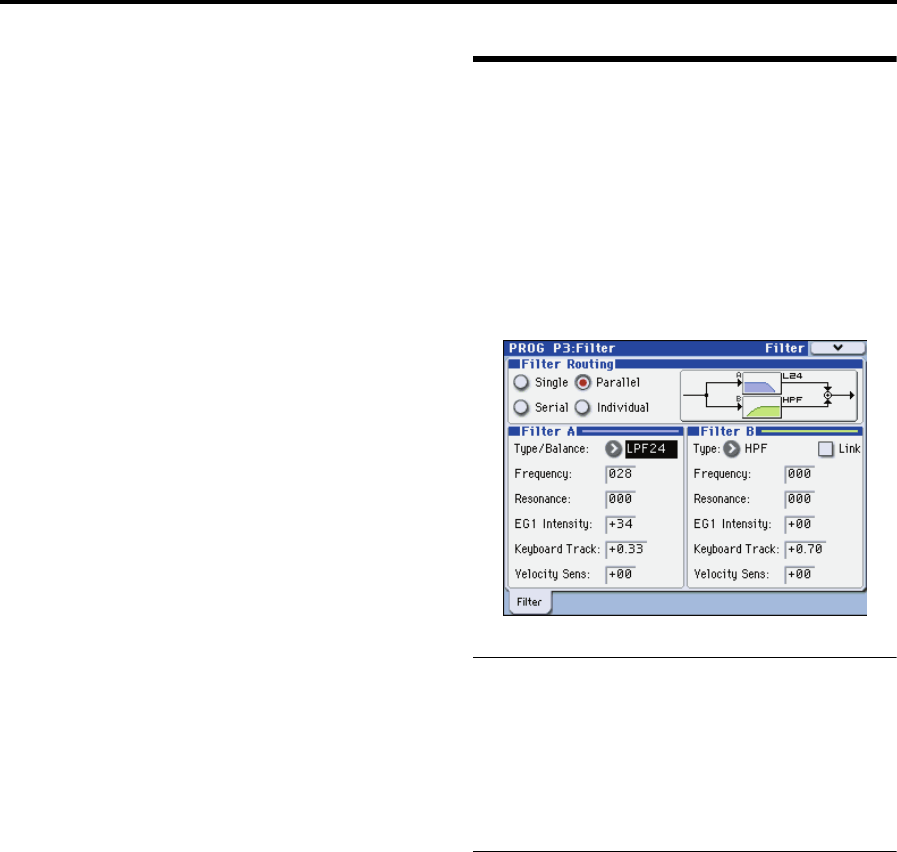
The basic filter settings, including the filter routing, filter
type, cutoff frequency, and resonance, are set on the PROG
P3: Filter page.
Filter Routing
1. Use “Filter Routing” to select the filter routing.
RADIAS programs provide two filters (filter A and filter B).
You can choose to use one or both filters, and how the two
will be connected if both are used.
For more information, please see “Filter Routing” on
page 34.
Filter A, Filter B (Filter settings)
1. Use the “Type/Balance” select the type of filter.
You can adjust the knob to obtain intermediate characters
between these filter types. The filter type will have a major
effect on the character of the sound.
If Filter Routing is Serial, Parallel, or Individual, you can
adjust this independently for filters A and B.
For more information, please see “3–1: Filter” on page 34.
2. Use the “Frequency” to adjust the cutoff frequency of
filter.
Higher settings will make the sound brighter. The result will
depend on the filter type.
For more information, please see “Frequency (Cutoff
Frequency)” on page 35.
3. Use the “Resonance” to adjust the resonance of filter 1.
Higher settings will increasingly emphasize the region
around the cutoff frequency, producing a nasal tone or a
whistle.
4. Use the “EG1 Intensity” to adjust the depth of the effect
that EG1 will have on the cutoff frequency of filter.
You can adjust this independently for filters A and B.
If you turn the knob toward the right of the center position
(“+” values), the EG will move the filter in the positive
direction (i.e., if the filter type is LPF, the sound will become
brighter).
If you turn the knob toward the left of the center position (“–
” values), the EG will move the filter in the negative